The user guide to your client area: what each page is for, and how to use it, step by step. The screenshots show the area of a sample hair salon. Can’t find your question here? Write to us and we’ll get back to you.
Getting started
Your area brings together everything about your online presence: your website, your business profile, your reviews, your messages and your invoices. If you only do four things, do these, in this order.
Client portal · Home
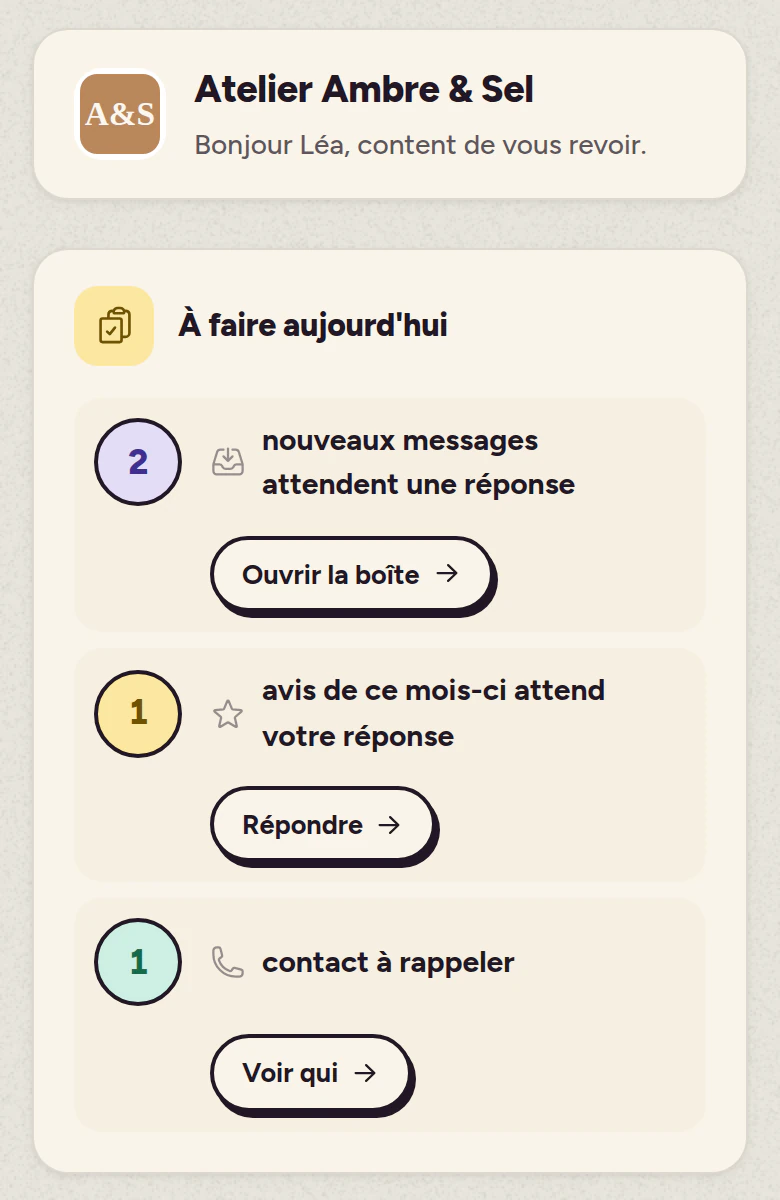
In the screenshot: a hair salon’s Home page. “To do today” lists what’s waiting for a reply (2 messages, 1 review, 1 contact to call back), and the cards below sum up your messages, rating, business profile and platforms.
Complete your business profile
Address, phone number, opening hours, description, photos. This is where your information comes from: your website and your appointments both use it.
Check your website
Open “My website”, click “View my website” and read it through the way a customer would. Note what needs to change.
Get ready for reviews
In “QR code”, paste your Google review link and print the card to put on your counter. It’s what boosts your visibility the most.
Tell us where people find you
In “Listing platforms”, add your Facebook, Instagram and Google pages. These links help us find our way around and count toward your presence score.
Good to knowThe presence score on your Home page sums all of this up out of 100. It goes up as you fill things in, so there’s no need to do everything on day one.
Finding your way around
Everything is organised into four main sections, at the top of the screen. When you open one, its pages appear in the left-hand menu.
Client portal · My contacts
In the screenshot: the “My activity” section is open, in green. Its menu on the left leads to the inbox, contacts, appointments and “Email my customers”; search sits at the very top, your account at the very bottom.
The main sections
Four of them, at the top of the screen, each with its own colour:
My businessyour website, your text and content, your shop and your change requests.
My activityyour messages and incoming requests, your contacts, your appointments and your emails.
Online presenceyour business profile, your reviews, your platforms, your QR code and your statistics.
My accountyour profile, your invoices, your team and the help centre.
The left-hand menu
It changes with the open section and takes on its colour, like the buttons and tabs: one glance tells you where you are.
At the very top: search, to find a message, a contact or a review.
In the middle: the pages of the open section.
At the very bottom: your name, which opens your account.
The round buttons at the top right
Opens your website in a new tab.
Lets you report a problem to us.
Opens the help centre.
Shows your notifications.
A more discreet menu
Is the left-hand menu in your way? In “My account”, “Display” tab, tick “Collapse the left-hand menu”: it shrinks to its icons and opens when your mouse passes over it.
On your phone
The bar at the bottom of the screen takes you to the main sections, and “Menu” opens everything else.
Your Home page and notifications
The Home page is the first page you see. You choose what it shows, and what’s new is waiting for you there.
Client portal · Notifications
In the screenshot: the bell opened from the Home page. Each message received leaves a notification with its “View message” link; “Mark all as read” and “Clear all” sit above the list.
Customise
The “Customise” button at the top of the Home page opens the list of blocks: add the ones you use, remove the others, then save.
The presence score
A score out of 100: business profile, website, reviews, platforms and visits. The tip under the score tells you what earns the most points.
Notifications
The bell at the top right shows what’s new: a message received, a request moving forward…
Click a notification to read it in full, then “All notifications” to go back to the list.
Getting started
Until your area is ready, the “Getting started” card tells you what to do. It disappears on its own once everything is ticked.
Good to know“Mark all as read” clears the bell’s badge without deleting anything: your notifications are still there to look at.
My website
You can edit your own text and photos, without waiting for us and without breaking anything. For anything bigger, just ask and we’ll take care of it.
View my website
Opens your website in a new tab, exactly as your visitors see it.
Edit my website
Your website appears with the editable areas outlined. Click a text or a photo, change it, then publish.
A backup is made before every publish, so nothing is ever lost.
Manage my content
The lists on your website (services, projects, news) are edited from “My content”. Save, and a few seconds later it’s live.
Request a change
A new page, a new section, a layout change: describe what you want, attach a photo if needed, and we’ll do it for you.
Track my requests
In “My requests”, you can see where each one stands: received, in progress, done.
Good to knowNot sure before publishing? Go ahead and publish: we can always roll back to the previous version.
My shop
If your website sells products (or shows your dishes), you manage them from here, and your website updates itself.
Add or edit
Name, description, price, photo. Badges (“New”, “Homemade”…) put an item in the spotlight.
Manage stock
Enter a quantity, or tick “Always available” if you don’t keep count.
Hide without deleting
Untick “Visible on my website”: the item disappears from the website but stays in your area, ready to come back.
My business profile
Your official information, all in one place. It feeds your website, your appointment slots and what Google shows about you.
Client portal · My business profile
In the screenshot: the salon’s business profile, marked “Profile complete”. At the top, “Pull info from my website” and shortcuts to Google; at the bottom, “Save and publish” sends your changes to your website and to Google.
Contact details
Address, phone number, email, website. The “Pull info from my website” button fetches them automatically if they’re already there.
Opening hours
Day by day, including breaks. They also decide which slots are offered for appointments.
Description and photos
Write the way you’d talk to a customer walking through the door. A complete profile stands out more than an empty one.
My messages and contacts
Everything your visitors send you lands here, and every person is saved in your address book.
Client portal · Inbox
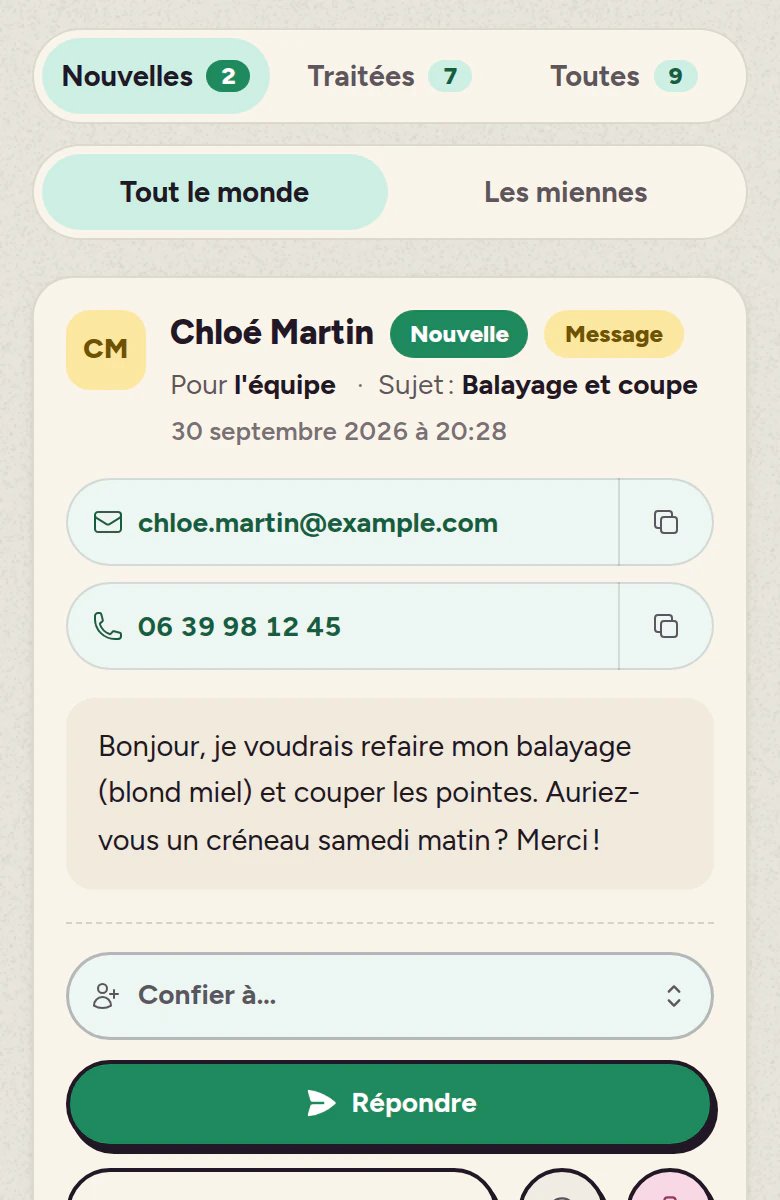
In the screenshot: two new messages from the website. For each one, the email and phone number copy in one click, “Assign to…” hands it to someone on the team, and “Mark as handled” moves it to the “Handled” tab.
Inbox
Everything your customers send you from your website: form messages and, for a salon, appointment requests. On each message:
Reply: answer them directly.
Assign to…: hand it to someone on your team.
Mark as handled: it moves to the “Handled” tab.
My contacts
Everyone who writes to you or books an appointment is added automatically. You can give them:
A status: call back, customer or lost.
Tags: to find your customers by group (highlights, wedding…).
Notes: visible only to you and your team.
Email my customers
One message to several contacts at once: something new, a closure, a special offer.
It goes out from your own address. If it isn’t set up yet, a banner lets you do it yourself, or hand the setup over to us.
Good to knowPeople who unsubscribe stop receiving anything. It’s automatic, and it’s the law.
My reviews and visibility
Reviews are the number one reason customers pick you over someone else. The goal is recent reviews: you don’t need hundreds.
Client portal · Reviews
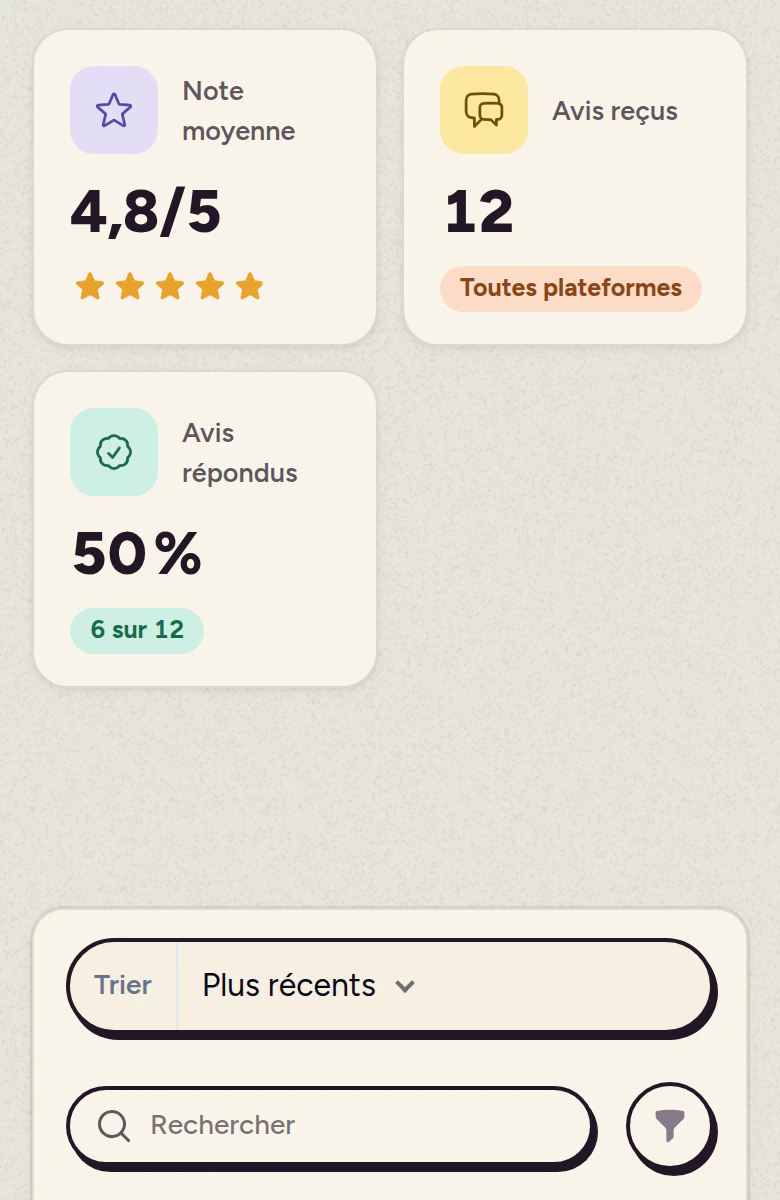
In the screenshot: the average rating (4.8/5), the number of reviews and the share answered, at the top. The “No reply” tab gathers the ones still waiting, and each review has its own “Reply” button.
Get your review link
On your Google Business Profile, click “Ask for reviews”: Google gives you a short link. Paste it into the “QR code” page.
Get your customers scanning
Download the QR code, print the card and put it on your counter or tables. You can also text the link after a customer’s visit: a ready-made message is there to copy.
Reply
From “Reviews”, you reply in one click. Replying to reviews, even bad ones, counts for more than the number of stars.
Good to knowAutomatic posting to Facebook and Instagram hasn’t been opened up by those platforms yet: nothing is sent from here until they grant access.
My appointments
Your customers book online, any time, without calling you in the middle of a busy shift.
Client portal · Appointments
In the screenshot: the salon’s day, with 4 appointments today, 6 coming up and 2 awaiting confirmation. Each row shows the time, the customer, the service and its status.
Turn it on
“Set up” button: turn on booking, then add your services with their duration and price.
Share your page
The “My booking page” button gives you the public address. Put it on your website, your Google Business Profile and your social media.
Manage your day
Everything happens from the appointment list:
Confirm or cancel: in one click, on each row.
New appointment: to add one booked over the phone.
The calendar: see everything by month, week or day.
Good to knowThe slots offered follow your opening hours: if you close one afternoon, change it in “My business profile” and booking follows along.
My statistics
How many people visit your website, when, and how they get there.
Client portal · Statistics
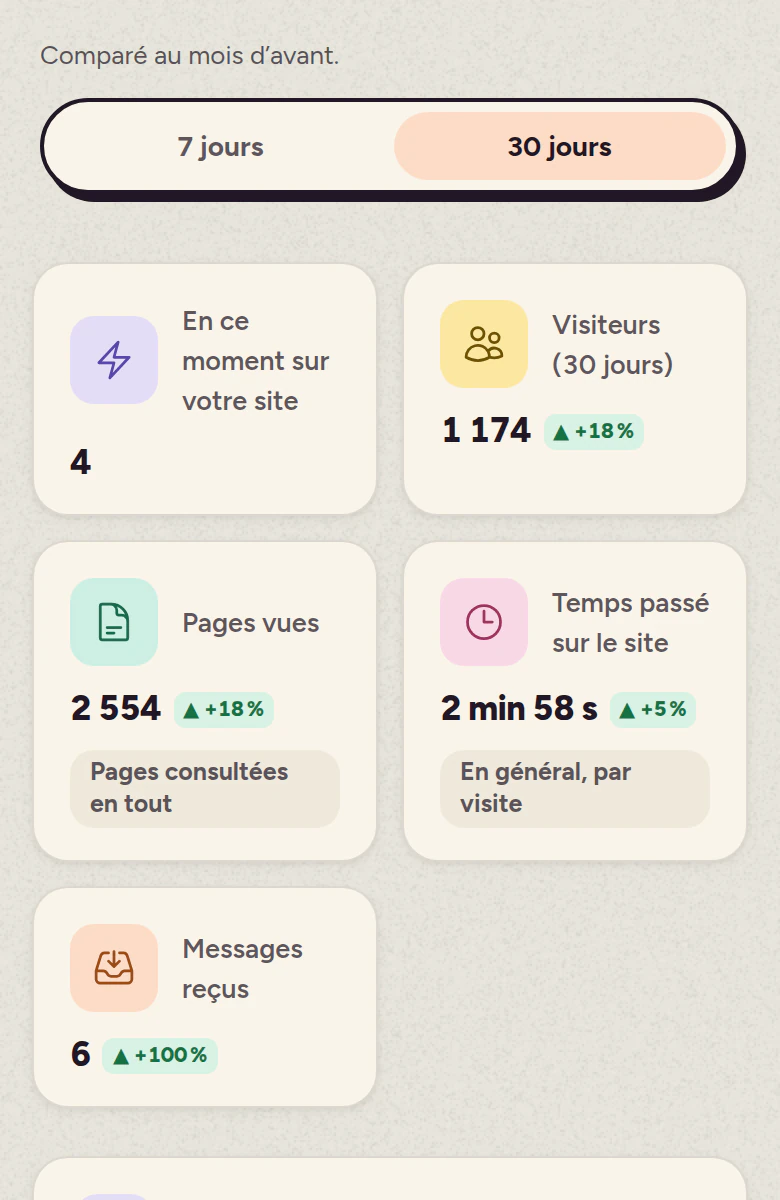
In the screenshot: the salon’s month. At the top, visitors, page views, time spent and messages received, each compared with the previous month; below, the day-by-day chart, then where visitors come from and on which device.
Read the numbers
Look at the trend over the month: a single quiet day means nothing.
See where visitors come from
Google, social media, people typing your name: this tells you where to focus your efforts.
Good to knowThe counter is anonymous and cookie-free: your visitors aren’t tracked, and you don’t need to show a banner for it.
My account, team and invoices
The admin side, kept to a minimum.
Client portal · My invoices
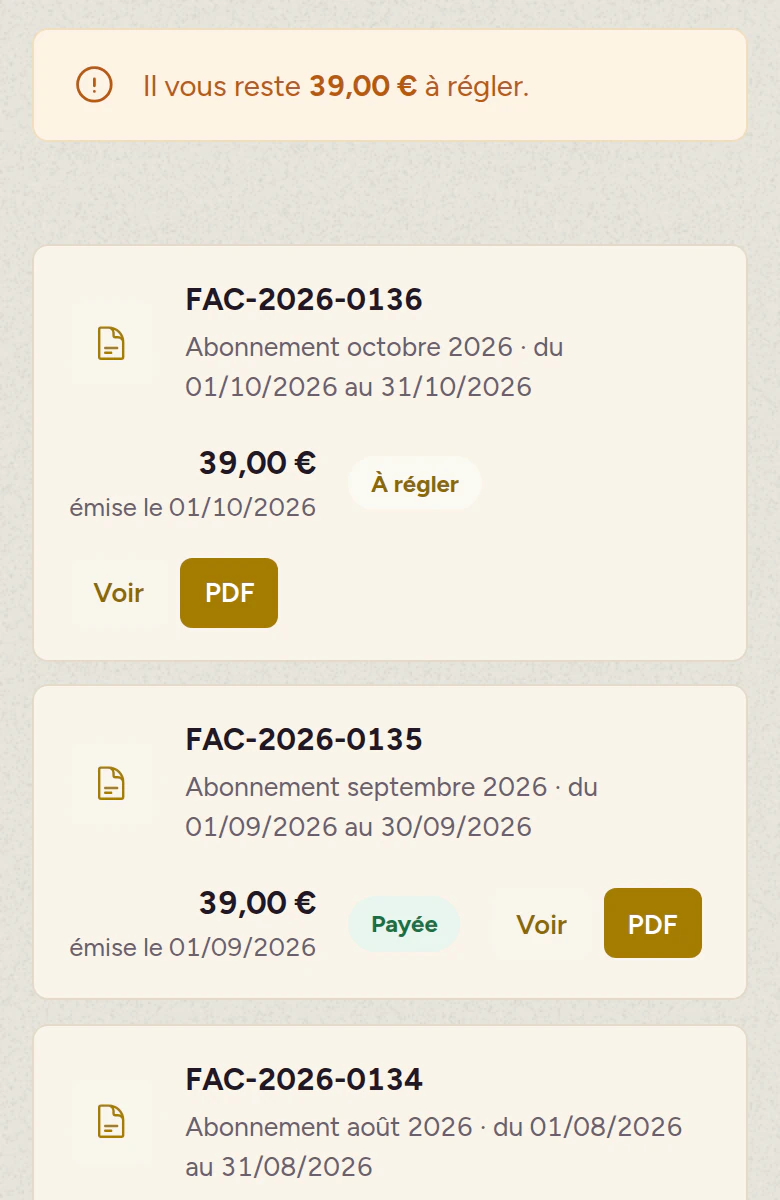
In the screenshot: the amount left to pay at the top, then each invoice with its number, period and status (“To pay” or “Paid”). “PDF” downloads it for your accountant.
My invoices
They show up here on their own. You can open them on screen or download them as PDFs for your accountant.
My profile
Three tabs:
My profile: your name and photo.
Login & security: your email and password.
Billing: your subscription and invoices.
My team
Invite a colleague with “Invite a member”: they get their own login, and you choose what they can do.
Several locations
The location switcher at the top of the screen moves you from one to another.
Display and alerts
Two tabs in “My account”:
Notifications: the emails you receive.
Display: to collapse the left-hand menu.
Got aquestion?
Editing my website
No. You only touch the text and photos, never the structure, and a backup is made before every publish. If in doubt, write to us and we’ll restore the previous version.
Yes, a few seconds after you publish. If you don’t see the change, reload the page while holding down the Shift key: your browser sometimes keeps the old version in memory.
Check that it’s a JPG or PNG and no bigger than a few megabytes. A photo taken at an angle on a phone can arrive rotated: retake it held level, or ask us to crop it.
Account and access
On the login screen, click “Forgot password”. If nothing arrives, write to us and we’ll send you new access.
You, and the team members you’ve invited. Your customers and other businesses can’t see them.
Yes. The bar at the bottom of the screen takes you to the main sections, and “Menu” opens everything else. To edit your website in place, a computer is still more comfortable.
Help and turnaround
Yes, in two ways, from the help center in your area. We can take control of your computer with AnyDesk (you see everything we do), or we can set up a video call to show you.
Small requests (text, photo, opening hours) are done within 48 business hours. For a new page or a big change, we’ll tell you in advance when it will be ready.
Let us know right away. It’s our problem to fix, and we handle it as a priority.
Finding your way
Click the bell at the top right, then the notification: it opens up with the whole message and, if there is one, the button that takes you to the right page.
In “My account”, “Display” tab, tick “Collapse the left-hand menu”. It shrinks to its icons and opens when your mouse passes over it.
Each main section has its own colour (green for “My activity”, orange for “Online presence”…). Buttons and tabs take it on, so you always know where you are.